

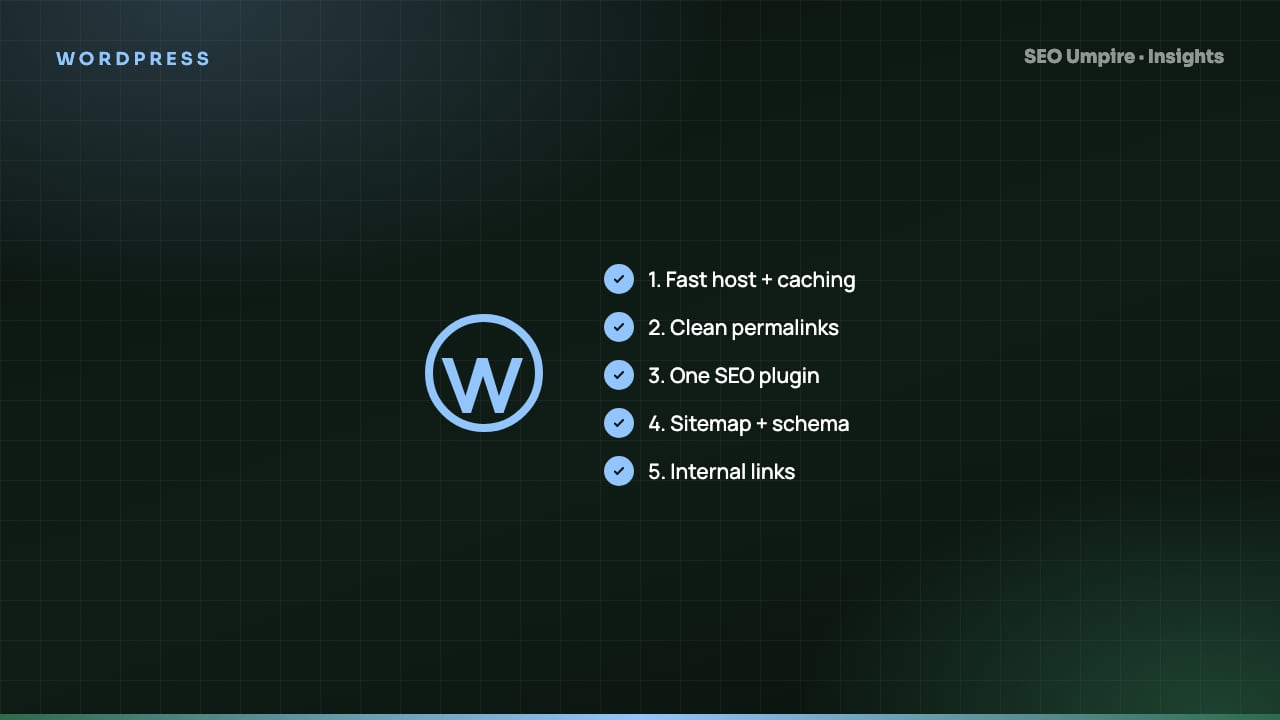
WordPress SEO Guide: 12 Steps to Rank a WordPress Site in 2026
WordPress SEO in 12 steps: hosting and Core Web Vitals, permalinks, one SEO plugin, sitemaps, schema, internal links, images and AI-search readiness.
WordPress SEO is the work of configuring hosting, theme, plugins and content so that search engines and AI answer engines can crawl, understand and trust your site. A default WordPress install is not optimized; it needs clean permalinks, a single SEO plugin, caching, compressed images, structured data, deliberate internal linking and content written to answer questions. This guide walks through the 12 steps that make the difference, in the order to do them.
Each step includes how to verify it, because WordPress sites drift. A plugin update can add a render-blocking script or change how canonicals are output, and nobody notices until traffic drops.
Why does WordPress need SEO configuration at all?
WordPress produces valid HTML, supports custom permalinks and has a huge plugin ecosystem. The defaults and that ecosystem also create predictable problems: themes that load 1 MB of CSS and JavaScript on every page, page builders that bury text in nested divs, full-resolution uploads with no compression, thin tag, author, date and attachment archives, and two plugins both emitting Open Graph tags or schema. None of these are hard to fix. They just have to be fixed deliberately.
Step 1: Get hosting and Core Web Vitals right first
Core Web Vitals on WordPress are decided mostly by server response time, theme weight and image handling. The SEO plugin barely matters here.
- Choose a host with PHP 8.2 or later, HTTP/2 or HTTP/3, server-level page caching and a CDN. Time to First Byte should be under 200 ms from your main market.
- Use a lightweight theme (block themes or performance-focused classic themes). Test the theme demo in PageSpeed Insights before you commit.
- Target: LCP under 2.5 s, INP under 200 ms, CLS under 0.1 on mobile for your template types.
Read the Core Web Vitals SEO guide for how to diagnose each metric.
Step 2: Fix the five dangerous defaults
- Settings > Permalinks: choose Post name. Never change this on an established site without a redirect map.
- Settings > Reading: confirm "Discourage search engines from indexing this site" is unchecked. Staging sites get launched with it ticked more often than you would believe.
- Settings > General: set WordPress Address and Site Address to the HTTPS version you want indexed, www or non-www, and redirect the other three variants with 301s.
- Media: disable attachment pages (most SEO plugins redirect them to the parent post).
- Comments and pingbacks: disable pingbacks and trackbacks to avoid spam links in your HTML.
Step 3: Install exactly one SEO plugin
Pick one plugin and remove the others. See the best WordPress SEO plugins compared for a fair comparison of Rank Math, Yoast and SEO Umpire. Whichever you choose, configure:
- Title templates per post type:
%title% | %sitename%for posts, keyword-led titles for key pages. Keep titles around 50 to 60 characters; see title tag length best practices. - Meta description templates as a fallback, with hand-written descriptions on money pages.
- Noindex on tag archives, date archives, author archives (unless multi-author with real author pages), search results and attachment pages.
- Breadcrumbs enabled, with BreadcrumbList schema.
The SEO Umpire WordPress plugin sets these defaults during setup and flags any page that overrides them in a harmful way.
Step 4: Build the sitemap and robots.txt correctly
Your plugin generates an XML sitemap. Make sure it:
- Excludes noindexed URLs (a sitemap full of noindex pages sends mixed signals)
- Splits into sub-sitemaps under 50,000 URLs each
- Is referenced in robots.txt with a
Sitemap:line - Is submitted in Google Search Console and Bing Webmaster Tools
robots.txt should not block /wp-content/uploads/ or CSS and JS. Blocking /wp-admin/ is fine (WordPress does this by default and allows admin-ajax.php). Details in the XML sitemap and robots.txt guide.
Step 5: Set canonicals and kill duplicate content
WordPress creates duplicates through pagination, parameters (?replytocom=), category and tag overlap, and HTTP/HTTPS or trailing-slash variants. Your plugin outputs a self-referencing canonical on every page; verify it on paginated archives and on pages with query strings. Read the canonical tags and duplicate content guide for edge cases.
Step 6: Optimize images
Images are the largest payload on most WordPress pages.
- Serve WebP or AVIF. WordPress generates WebP for JPEG uploads since 6.1 if the server supports it; otherwise use an image plugin or a CDN that converts on the fly.
- Resize before upload. A 5000 px photo in a 800 px column wastes bandwidth even if lazy-loaded.
- Add descriptive alt text on every content image. See image alt text for SEO.
Step 7: Add structured data
Beyond the default Article and Organization schema, add type-specific markup:
| Content type | Schema to add | Rich result possible |
|---|---|---|
| Blog posts | Article or BlogPosting with author, datePublished, image | Article carousels, AI citations |
| Product pages (WooCommerce) | Product with offers, aggregateRating, review | Price, stock, stars |
| Service and support pages | FAQPage | FAQ dropdowns, answer-engine extracts |
| Tutorials | HowTo | Step-by-step rich results |
| Local business | LocalBusiness with address, hours, geo | Knowledge panel, map pack support |
| Events | Event | Event listings |
Validate with Google's Rich Results Test. The AI schema generator writes JSON-LD from a URL, and the JSON-LD schema markup guide explains how to nest entities correctly.
Step 8: Design the internal linking
Internal links are how WordPress distributes authority and how crawlers discover deep content.
- Every post should link to at least three related posts and one hub or category page.
- Every important page should be reachable within three clicks of the homepage.
- Use descriptive anchor text, not "click here".
- Fix orphaned posts monthly; most SEO plugins report them.
The internal linking strategy guide covers hub-and-spoke structures for WordPress.
Step 9: Write content that answers questions
Rankings in 2026 depend on whether your page answers the query faster and more completely than the alternatives, and whether an AI engine can lift that answer.
- Open with a 2-3 sentence direct answer.
- Use H2 and H3 headings phrased the way people search ("How much does X cost?").
- Add an FAQ section with real questions from Search Console and People Also Ask.
- Use tables for comparisons and numbered lists for processes.
Find question-led keywords with the keyword research tool and check on-page SEO checklist before publishing.
Step 10: Prepare for AI answer engines
WordPress sites get cited by ChatGPT, Perplexity and Google AI Overviews when they are crawlable, fast, well structured and clearly attributed.
- Publish an llms.txt file at the site root listing your key pages and a short description of the site. See the llms.txt file guide.
- Do not block AI crawlers in robots.txt unless you have decided you do not want citations.
- Put author bios with credentials on every article.
- Keep facts, numbers and definitions in short, quotable sentences.
For the full approach read the answer engine optimization guide and the generative engine optimization guide.
Step 11: Secure and maintain the site
Hacked WordPress sites get deindexed or flagged with "This site may be hacked" in results. Keep core, themes and plugins updated, use strong admin passwords with two-factor authentication, limit login attempts, and remove unused plugins and themes entirely. Delete the default admin user. Security directly protects rankings.
Step 12: Measure and audit on a schedule
- Connect Google Search Console and Bing Webmaster Tools.
- Track 20 to 50 target keywords with a rank tracker so you catch drops within days.
- Run a full crawl monthly with a site audit: broken links, redirect chains, missing meta, thin pages, orphaned posts.
- Run a quick scan with the free SEO checker after every theme or major plugin update.
- Review Core Web Vitals in Search Console every month; a plugin update is the usual cause of a regression.
WordPress SEO mistakes that cost the most traffic
- Launching with search engines discouraged
- Changing permalink structure without redirects
- Running two SEO plugins or a theme that also outputs schema
- Indexing tag pages with one post each
- Deleting old posts without redirecting them
Each of these is caught by a monthly crawl. None of them are caught by looking at the dashboard.
Frequently asked questions
Is WordPress good for SEO?
Yes. WordPress gives you full control over titles, URLs, markup, sitemaps and speed, and it powers a large share of top-ranking sites. It is only as good as its configuration, though; a default install with a heavy theme and no caching will rank poorly.
What are the most important WordPress SEO settings?
Set permalinks to Post name, make sure Search engine visibility is unchecked, install exactly one SEO plugin, set title and description templates, enable an XML sitemap, and choose www or non-www and HTTPS consistently with redirects.
Do I need a caching plugin for SEO?
Almost always. Caching turns PHP-rendered pages into static HTML, which cuts server response time and improves Largest Contentful Paint. Good managed hosts include server-level caching; on shared hosting use a caching plugin.
How often should I audit a WordPress site?
Run a full crawl monthly and a quick scan after any theme or major plugin update. Plugin updates frequently change markup, add scripts or alter canonical behavior without warning.
Free audit, 32 checks, prioritized fixes and a PDF report in about 15 seconds. No signup.
Keep reading
 WordPress
Best WordPress SEO Plugins Compared: Rank Math vs Yoast vs More
Rank Math, Yoast SEO, SEO Umpire, AIOSEO, SEOPress and The SEO Framework compared on free tiers, schema, automated fixes, AI-search readiness and price.
 SEO Basics
Competitor SEO Analysis: A 7-Step Process to Find Keyword Gaps
Competitor SEO analysis in 7 steps: find your real search competitors, run a keyword gap analysis, compare content, technical health, links and AI citations.
 Content
Google Trends for SEO: 9 Ways to Use It for Keywords and Content
How to use Google Trends for SEO: read the 0 to 100 index, compare keyword variants, plan seasonal content, find rising queries and check demand by country.
One short email a week: what changed in Google and AI answers, and the fixes that matter. No spam, unsubscribe any time.